June 5, 2017
Comparing Creative Software
I am not a professional graphic designer, but I do use photo and design programs quite a bit for every day tasks like photo retouching and vector image creation. I've been and will continue to be a supporter of open-source software alternatives. But I'm also interested in more cost-friendly commercial alternatives. I'm always curious about new software, especially design related, which is why I was really intrigued to learn about the fairly recent Affinity apps. It's been a long time since Adobe has had a serious commercial competitor (RPI Macromedia). But that day may have come with the arrival of the Affinity set of creative applications. I've been trying them out, and so far I've really impressed. So, I compared both Affinity apps with their Adobe and open-source counterparts.
Note: Affinity is a line of design software from Serif, a software company based in Britain that has been producing Windows-based software for quite awhile. It seems they're going through a serious re-branding with the Affinity brand, focusing equally on Mac and Windows and trying to be a real challenger to Adobe. Technically they are, but practically they aren't.
Illustration/Vector Editing
To compare the features of the illustration applications I used each to create a really simple image of a candy bar with the wrapper partially missing, and a bite taking out of the chocolate, as well as a little bit of drop shadow to give it a slight 3D effect. I did this to demonstrate the similarities of the three applications in what they are capable of creating.
If you were to ask me what are the two most important features of Illustrator, I would say they are the pathfinder and the pen tool. Also the transform and alignment functions are critical. Each of the three applications have these tools, although they have slightly different names. Googling solves most confusions where feature names are different from one application to the next.
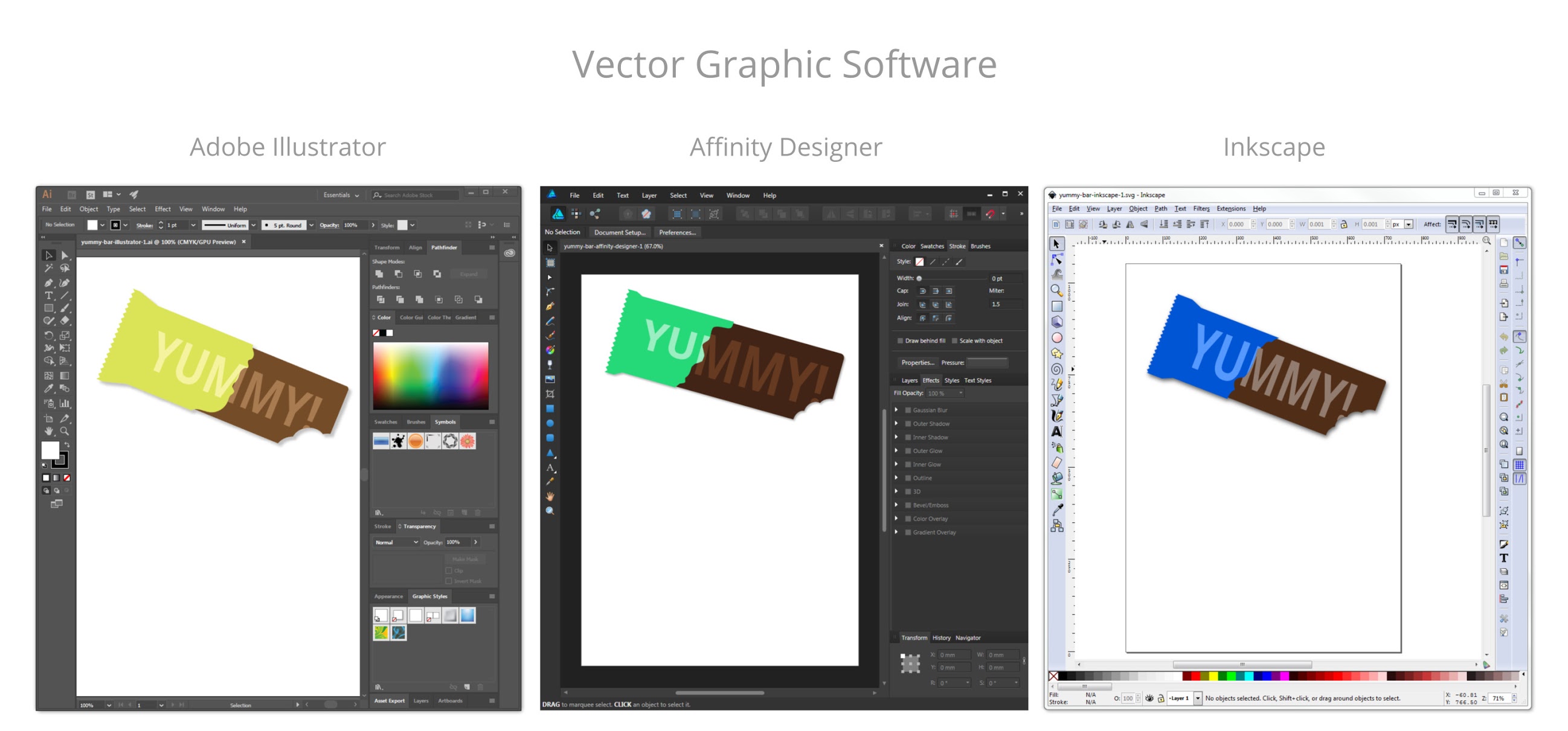
I intentionally tried not to make them look exactly the same to demonstrate that each is unique, but I used the same processes all three times. I could just as easily made the exact save version with each app. The tools I relied on most are the pen tool, the pathfinder feature, the node selector, and the linked offset feature.
One major advantage both Inkscape and Affinity Designer have over Illustrator is file size. It's quite shocking how much larger Adobe files are, even when saved as svg without Illustrator editing capabilities preserved (brings it down to around 800 KB).

Retouching/Raster Editing
There are some things that GIMP does out-of-the-box that PhotoShop cannot even do without a plug-in, such as creating and editing ICO files (favicons). The more recent editions of GIMP offer a single-window UI which is much closer to Photoshop. Although the names of things are a bit different in GIMP from Photoshop, a little playing and/or Googleing can help you quickly identify how to do all of the same tasks

After spending a week testing out Affinity Photo I'm pretty impressed with how close it resembles Photoshop. I really like that the keyboard shortcuts are the same. For example, I can't tell you how often I use Cmd/Ctrl+Alt+I to open the dialog to scale an image. Or Cmd/Ctrl+Shift+C to crop an image. This works the same in Affinity. Just an example of how easy it is to transition from one program to the other.
Importance of Workflow
Aside from the abundance of features that Adobe offers with it's creative cloud, it's iron-clad grip on the creative industry is really it's most important attribute, by which I mean your ability to collaborate with other designers, almost all of whom use Adobe products
Most professional designers I work with would not take anything other than Adobe seriously. From their logical point of view: why would they bother learning a new set of tools when they can stick with what they know, and what is the industry standard. Of course, most of them don't have to worry about affording the software as their employer typically foots that bill
I've read or heard a lot of reviews for Affinity that rave about it's capabilities and price, but relay that what matters most is really the software skills someone has when working with a team. So if you can't blend into a team that uses Adobe products, you skills no matter how amazing are irrelevant. Others argue that its really your ideas that matter, and as long as you can use whatever tools are provided to accomplish the same thing, it makes no difference. The key is, even if you make use of Affinity software, if you want to collaborate in the design world, you need to know how to get things done using Adobe products.
The Final Verdict
Definitely give Affinity software a try! The combination of capabilities and cost make it a no-brainier. You can do the same work with any of these tools. Affinity has all of the most important capabilities. It's backed by a small but dedicated company with a lot of experience, so you'll get a lot of benefit from that support. When ever I had a question on how to do something, I can usually find a post of the Affinity forum that provides an answer
If you're a pro graphic designer you'll probably not be swayed or able to switch away from Adobe. If you're a web designer/developer who doesn’t necessarily always need access to Adobe they you could really find Affinity to be a great and much-less expensive alternative
Here's a few things that I think could help Affinity:
- Extend your free Trial. 10 days is kind of a short evaluation time. Even Adobe gives you a month.
- Make a license user based, and OS-agnostic. With Adobe a user can download and install on multiple OSes. I shouldn't have to pay for both a Windows and Mac version of the same program.
I will always continue to recommend the open-source options. With GIMP and Inkscape you have all of the most important functionality that Photoshop and Illustrator offer, as do Affinity Designer and Affinity Photo, but with open-source it's 100% free, and supported by a big community of open-source enthusiasts! Affinity's advantages are getting support from the company, and having a more polished-looking UI, and being a great low cost but familiar and functional alternative to Adobe.
Labels: Affinity, Front-end Development, GIMP, Graphic/web design, Illustrator, Inkscape, Open Source, Photoshop, web development


April 13, 2017
Atom has become my go-to text editor
A little over a year ago I wrote a post comparing text editors, so I thought I'd take some time to reflect back on those, as well as a new ones I've started using. Atom is becoming my favorite text editor and I'm relying on it for almost everything lately.
I spend a lot of time using text editors. I like to try out new ones every so often. I feel like if you work in code it's good to try out new tools. For a long time, Notepad ++ was my go to editor. When others argued the benefits of using Dreamweaver as an IDE, I found myself more drawn to the independence of open-source Notepad ++ (plus any old FTP client). Then I discovered that there had been an emergence in a lot of new text editor options. I still love Notepad++ and give it credit for providing a great tool that inspired others. I have found a few new tools that I think are pretty great.
For a while I was using Brackets, an open-source Adobe product. Brackets really is a great editor that has some awesome features designed specifically for web designers/developers. I really like Brackets and I'll probably keep using it for some time. There are some really great features in Brackets. I like that it offers some features that were nice about Dreamweaver, such as auto tag closing, and the image preview when you hover over an image file path. It also provides a live preview of your edits via Google Chrome. But even on my pretty fast work computer Brackets can be a little slow to load, but overall much faster than Dreamweaver or any other Adobe product, just nowhere near as quick as Notepad++, Sublime or VS Code.
My current editor preference is the Atom editor, from the GitHub community. Like Brackets, it's also free and open-source, and it's also cross platform. I find it to have a great set of options and is pretty easy to customize to your needs. This video has some great tips for setting up Atom.
Here are some of the reasons I have grown to love Atom:
- At first I was really missing the self-closing tag feature of Brackets, but I've found the Atom alternative of using the shift key to pull up a dialoge box when beginning a tag to be more than equal as an alternative. You can also quickly close any tag by keying 'Ctrl+Alt+.'
- The customization of Atom is so easy, and so thoughtful. I really like the line that designates where code will end, and the lines you can have to designate tabs, and the ability to let the page scroll below the last line. Little features like these make the editor very comfortable to use.
- Search and replace works great: the 'Ctrl+F' function of Notepad++ allows me to easy find and replace multi-lines of text and for a while I thought that function was absent in Atom. It is in fact built into Atom, however the command is 'Ctrl+E.' 'Ctrl+F' still works, however it is single line find and replace only. No problem, but because 'Ctrl+E' works perfectly.
Recently I discovered another option for text editors, Miscrosoft's Visual Studio Code. VS Code is also open source, and out of the box has a lot of nice features. I also find it to be pretty fast to load compared to other editors, because of this VS Code has become my go-to editor for quick code edits, and I really rely on Atom for most projects where I'm spending any length of time. With Atom, if you take advantage of the available extensions (like the minimap, and the pigments color previewer) and customization options, you have one excellent editor.
Quite a few, probably most, front end web developers swear by Sublime Text. Sublime may not be free, but it is very affordable at just $70 for a lifetime license. A lifetime license will let you use the app on unlimited machines and operating systems. I've tried it, and I like it, but my attraction for open-source products keeps me going back to Atom, Brackets, and VS Code. I suggest that designers/developers try out all the editors they can. It's nice to have options!
Labels: code, Front-end Development, Graphic/web design, technology, text-editors, web development